How to Create a Game in Python using Pygame
Building a Snake Game from Scratch
Creating a game in Python is easier than it may seem. With a basic understanding of Python, students can build their own games instead of just playing those created by others. Today, even young learners are exploring game development using simple tools and logic.
In this blog, you will learn how to create your own Snake Game using Python and the Pygame library—from scratch.
At our Orchids The International School, students are encouraged to build such real-world projects to strengthen their coding skills and creativity.
Why Python is the Best Starting Point
Python is widely recommended for beginners because:
Simple Syntax: It reads almost like plain English, making it easy to learn.
Faster Development: You can write and test code quickly.
Beginner-Friendly Libraries: Libraries like Pygame simplify game development.
Focus on Logic: You spend more time building ideas rather than struggling with complex syntax.
What is Pygame?
Pygame is a Python library used to create 2D games. It provides tools to handle:
Graphics and animations
Sound effects
Keyboard and mouse input
It makes game development simple and fun, especially for beginners.
4 Key Elements of a Game
Before writing code, understand the core components of any game:
Goal: What does the player need to achieve?
Rules: What makes the game challenging?
Interaction: How does the player control the game?
Engagement: What makes the player want to keep playing?
Setting Up Your Environment
1. Install Python
Download Python from the official website ,Visit python.org and install it.
2. Install Pygame
Open terminal/command prompt and run:
pip install pygame3. Choose an Editor
Beginners: MUEditor
Intermediate: VS Code
6 Steps to Build a Snake Game
Step 1: Creating the Game Window
This step initializes Pygame and creates the main game window.
# Import required libraries
import pygame
import random

# Initialize pygame
pygame.init()

# Define window size
window_x = 720
window_y = 480

# Create game window
screen = pygame.display.set_mode((window_x, window_y))
pygame.display.set_caption("Snake Game")

# Define colors using RGB values
black = (0, 0, 0)
white = (255, 255, 255)
green = (0, 255, 0)
red = (255, 0, 0)

# Define snake block size and speed
snake_block = 10
snake_speed = 10
Step 2: Setting Up the Game Loop
The game loop keeps the game running continuously.
# Create clock object to control game speed
clock = pygame.time.Clock()

# Game over condition
game_over = False

# Main game loop
while not game_over:

    # Check all events happening in the game
    for event in pygame.event.get():

        # If user clicks close button, stop the game
        if event.type == pygame.QUIT:
            game_over = True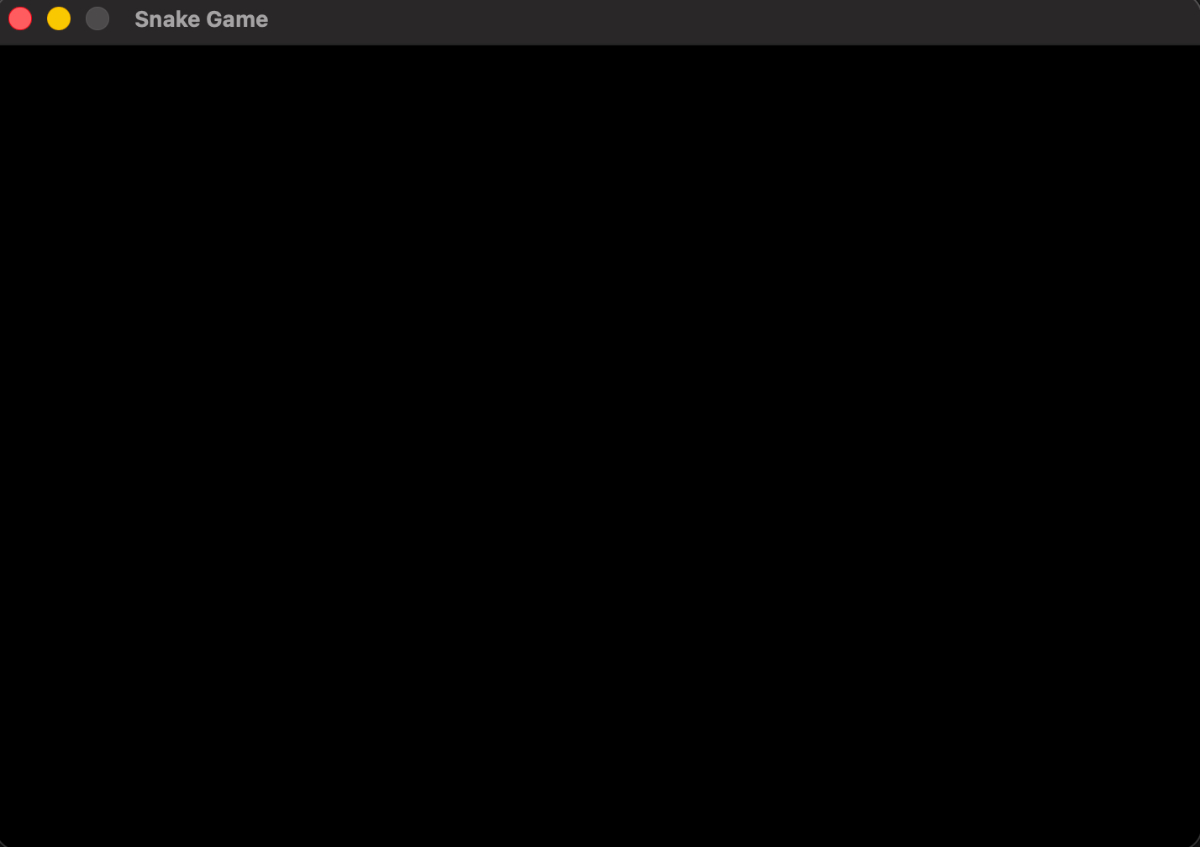
Step 3: Snake Movement Controls
This handles keyboard input and moves the snake.
# Initial position of snake (center of screen)
snake_x = window_x // 2
snake_y = window_y // 2

# Movement variables (change in position)
snake_x_change = 0
snake_y_change = 0

# Get key press input
keys = pygame.key.get_pressed()

# Move left
if keys[pygame.K_LEFT]:
    snake_x_change = -snake_block
    snake_y_change = 0

# Move right
if keys[pygame.K_RIGHT]:
    snake_x_change = snake_block
    snake_y_change = 0

# Move up
if keys[pygame.K_UP]:
    snake_y_change = -snake_block
    snake_x_change = 0

# Move down
if keys[pygame.K_DOWN]:
    snake_y_change = snake_block
    snake_x_change = 0

# Update snake position
snake_x += snake_x_change
snake_y += snake_y_change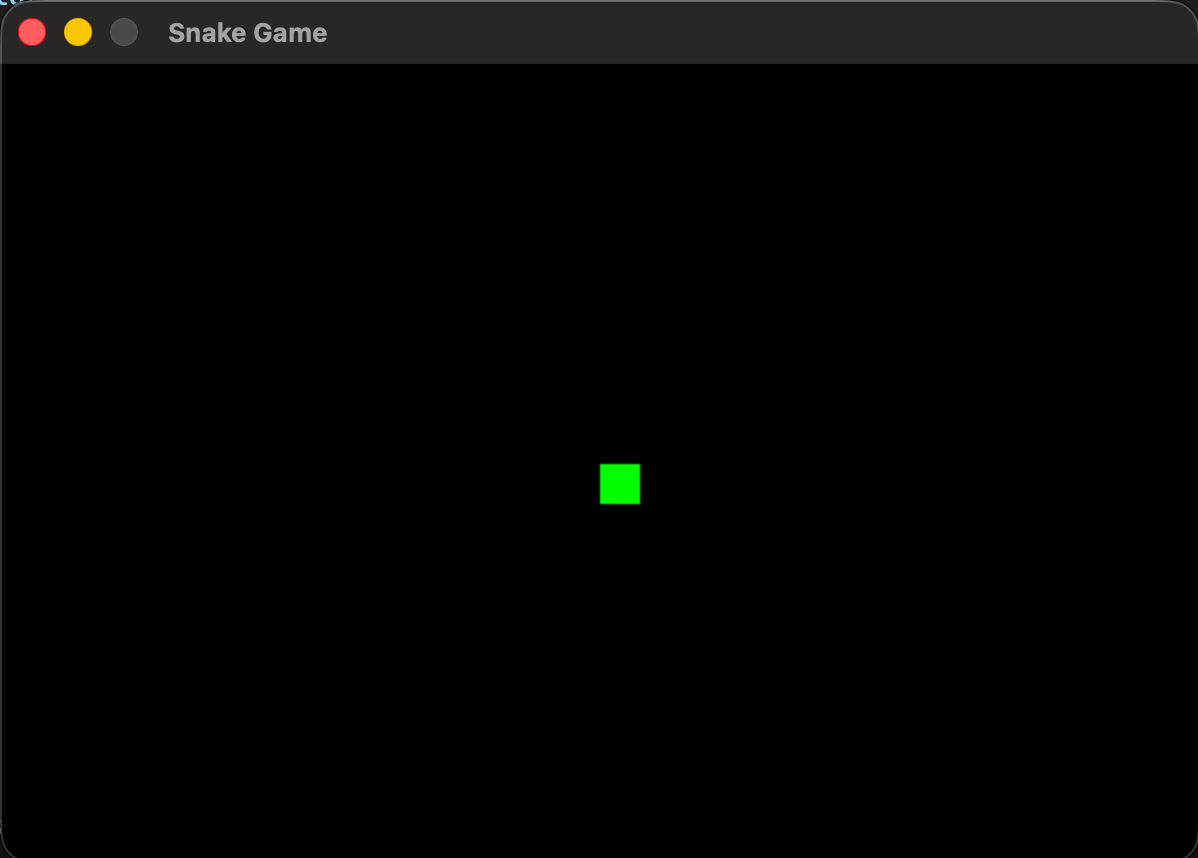
Step 4: Creating Food
This generates food at random positions.
# Generate random position for food (aligned with grid)
food_x = random.randrange(1, (window_x // 10)) * 10
food_y = random.randrange(1, (window_y // 10)) * 10

# Draw food as a red square
pygame.draw.rect(screen, red, [food_x, food_y, snake_block, snake_block])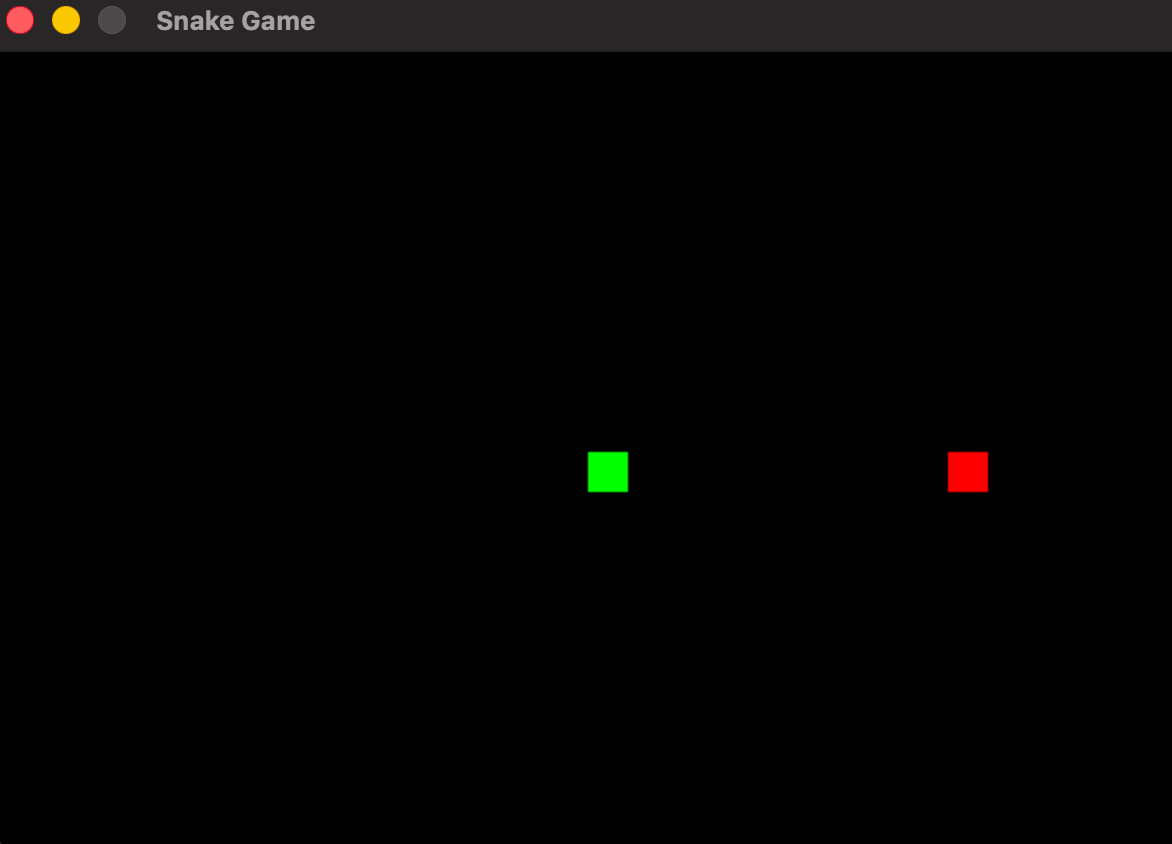
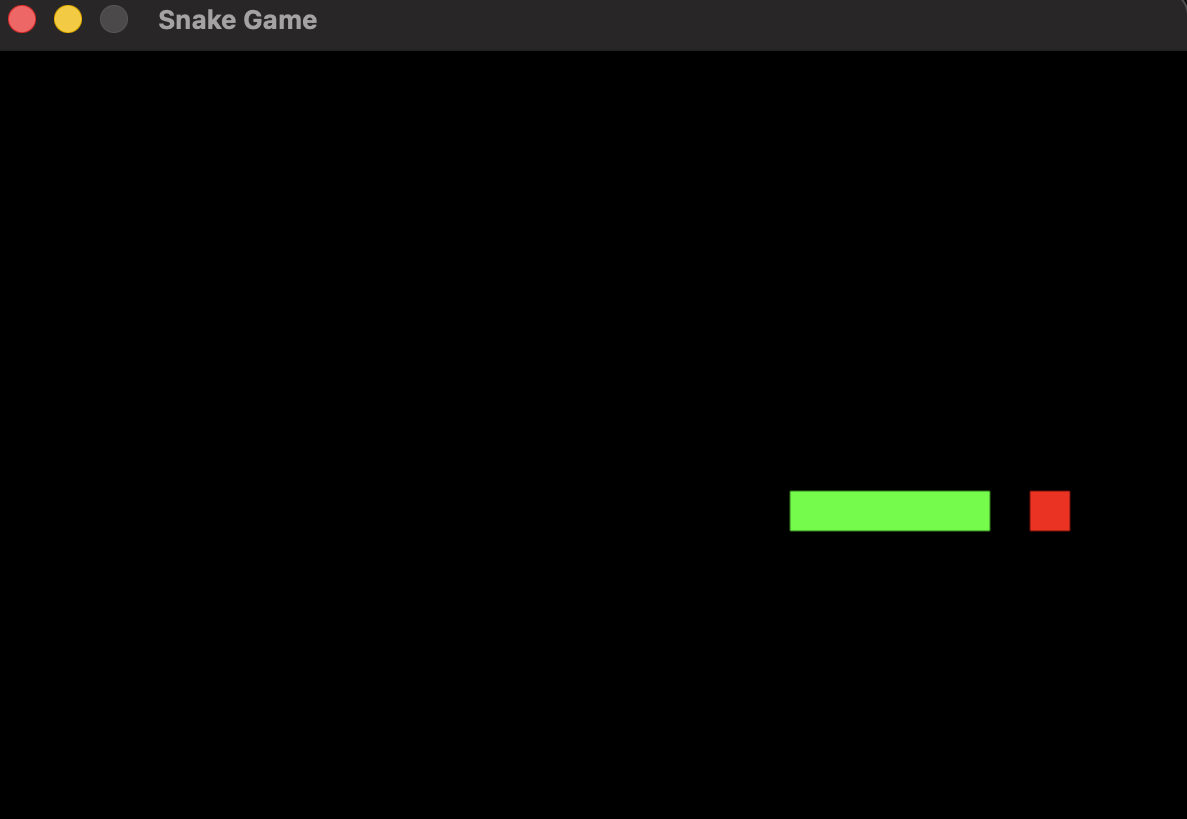
Step 5: Collision Detection
This checks if the snake hits walls or eats food.
# Check collision with window boundaries
if snake_x >= window_x or snake_x < 0 or snake_y >= window_y or snake_y < 0:
    game_over = True  # End game if snake hits wall

# Check if snake eats food
if snake_x == food_x and snake_y == food_y:

    # Generate new food position
    food_x = random.randrange(1, (window_x // 10)) * 10
    food_y = random.randrange(1, (window_y // 10)) * 10

    # Increase score
    score += 1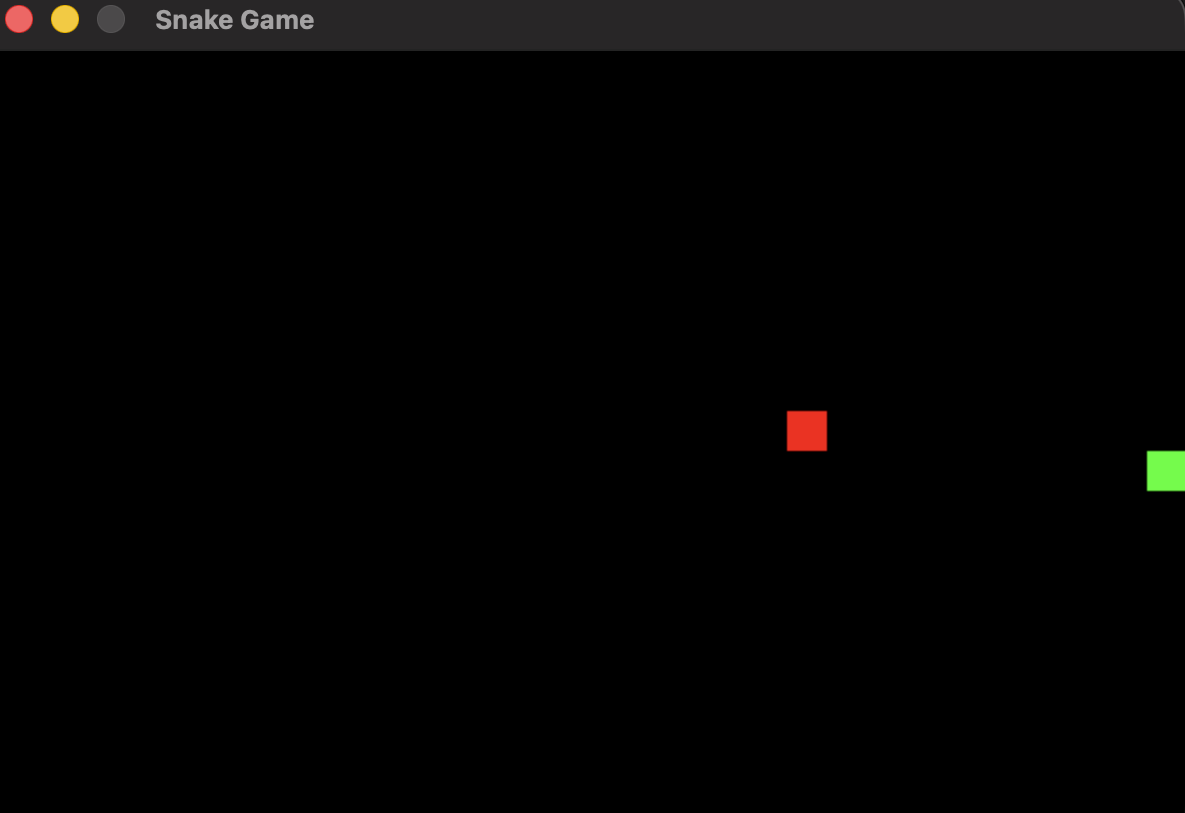
Step 6: Display Score
This shows the score on the screen.
# Set font for displaying score
font = pygame.font.SysFont("Arial", 25)

# Function to display score
def show_score(score):

    # Create text surface
    value = font.render("Score: " + str(score), True, white)

    # Display score on screen
    screen.blit(value, [10, 10])
Important Final Additions (Must for Working Game)
# Initialize score
score = 0

# Fill background color (clears previous frame)
screen.fill(black)

# Display score on screen
show_score(score)

# Update the display
pygame.display.update()

# Control game speed
clock.tick(snake_speed)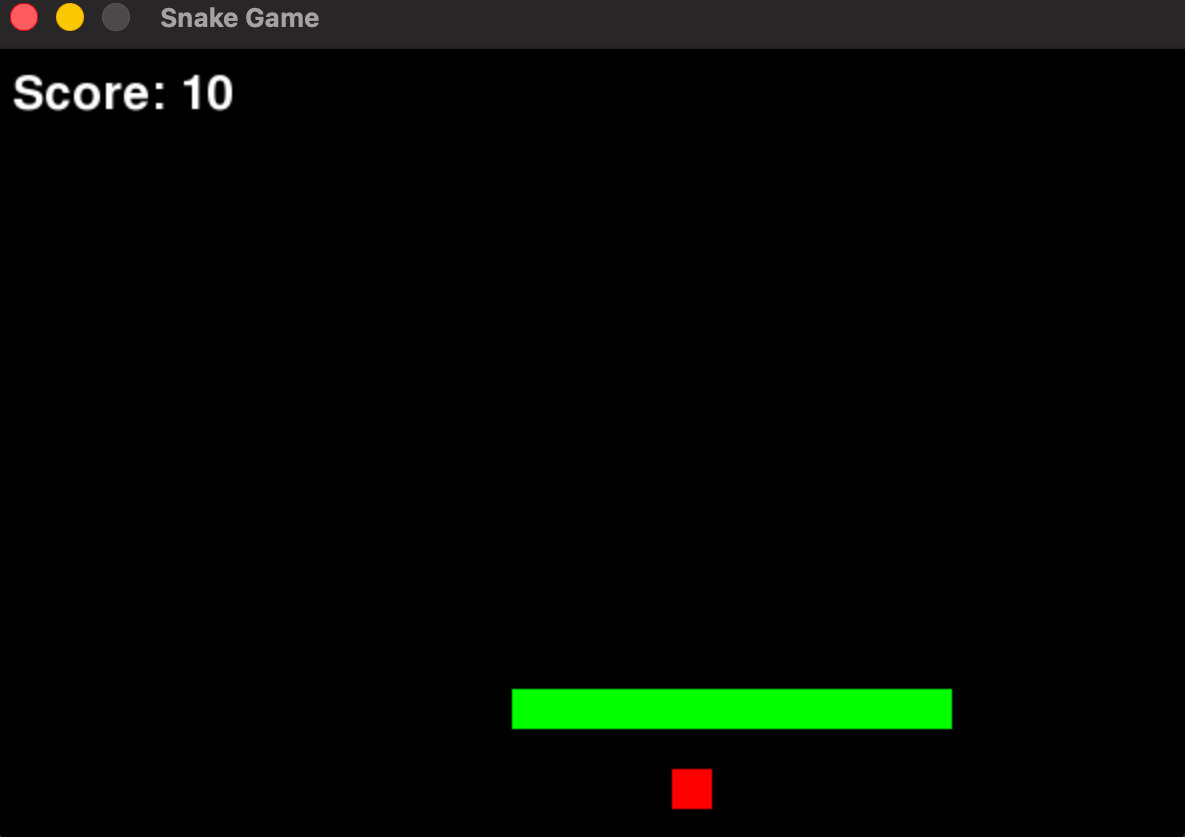
Common Errors and How to Fix Them
NameError → Variable not defined
IndentationError → Improper spacing
Game not updating → Missing pygame.display.update()
Controls not working → Input code outside loop
Debugging is part of learning—treat errors like puzzles to solve.
Conclusion
You have now learned how to build a Snake Game using Python and Pygame. This is a great starting point for game development.
Keep experimenting by:
Adding levels
Increasing speed
Adding sound effects
Start small, stay consistent, and keep building. The more you practice, the better you become.

Ritik Chopra
Hi, I’m Ritik Chopra, an Academic Manager in Coding and STEM. I work with 50,000+ students and train 120+ teachers every year, helping them learn and grow through practical, tech-driven education. Through my blogs, I share simple and useful insights on coding and STEM.